8 Steps to Launch Your First Telegram Mini App
Telegram Mini Apps are web-based tools that work directly within Telegram, offering features like seamless login, third-party payments, and push notifications. With over 500 million monthly active users, the potential is huge. Here’s a quick overview of the 8 steps to create and launch your first Mini App:
- Plan Your App: Define its purpose, audience, and key features. Study similar apps for inspiration.
- Design the Interface: Prioritize mobile usability and follow Telegram’s design guidelines.
- Set Up Development Tools: Use the Telegram Mini Apps React Template, SDKs, and debugging tools.
- Create a Telegram Bot: Use BotFather to build and link your bot to the Mini App.
- Build the App: Develop the interface, integrate Telegram APIs, and ensure smooth functionality.
- Test Thoroughly: Debug on multiple platforms and test all features across different devices.
- Launch Securely: Host on HTTPS, implement strong security measures, and verify the app with Telegram.
- Grow Your App: Promote it via Telegram channels, directories, and user feedback.
Quick Tip: Test your app on both Android and iOS devices to ensure consistent performance.
Ep. 2 Code Series: Your First Telegram Mini App in 5 Minutes
Step 1: Plan Your Mini App
Start by defining your target audience and the core functions of your Mini App. This will help streamline development and ensure it meets user needs effectively.
Define the App’s Purpose and Audience
Clarify the specific problem your Mini App will solve or the service it will provide. Think about how users will interact with it within Telegram’s ecosystem. Mini Apps can be launched in various ways, such as through profiles, keyboards, inline mode, bot menus, direct links, or the attachment menu [1].
Identify your target audience by focusing on:
- Primary demographics: Who are your main users?
- User behavior: How do they typically use Telegram?
- Challenges addressed: What problems does your app solve?
- Access points: How will users discover and access your app?
Study Similar Apps
Take a close look at existing Mini Apps. This can help you spot effective UI designs, useful features, and engagement strategies. It’s also a good way to understand performance optimizations that work well.
Outline Key Features
List the main features your Mini App will include, ensuring they align with Telegram’s technical capabilities and design guidelines. Prioritize features that deliver a smooth, fast experience.
Performance Tips:
- Keep animations running at 60fps.
- Make sure the UI is responsive on all screen sizes.
- Optimize for a range of devices, especially Android.
Key Components:
- Use labels for input fields to improve accessibility.
- Apply dynamic, theme-based colors using Telegram’s API.
- Follow safe area guidelines for fullscreen mode.
Your Mini App should feel like a natural extension of Telegram, blending seamlessly with its design and functionality [1].
Once your features are defined, you can move on to designing an interface that brings your vision to life. A solid plan now will make the design and development process much smoother in the next steps.
Step 2: Design Your App Interface
Creating an interface for your Telegram Mini App requires a mobile-first mindset and strict adherence to Telegram’s design rules. Here’s how to craft a design that feels right at home within the Telegram platform.
Prioritize Mobile Usability
Since most users access Mini Apps on their smartphones, your design must work seamlessly on smaller screens. Keep these tips in mind:
- Make buttons and other interactive elements large enough for easy tapping.
- Leave enough space between touchable elements to avoid accidental clicks.
- Position key actions within thumb-friendly zones for effortless interaction.
Once your design is mobile-friendly, it’s time to align it with Telegram’s specific design standards.
Stick to Telegram’s Design Guidelines
Telegram has clear rules to ensure Mini Apps look and feel consistent with the platform. The TelegramUI React components library (version 2.1.3, released May 2024) provides pre-built elements that match Telegram’s style [2]. Here are some essential design tips:
- Use Telegram’s dynamic theme-based colors to automatically align with user preferences.
- Pay attention to safe areas, especially in fullscreen mode, to avoid overlapping critical UI elements.
- Include clear labels for inputs and images to improve accessibility for all users.
- Adjust your design based on device performance, especially for Android users.
Performance Optimization Table:
| Device Class | Design Guidelines |
|---|---|
| High Performance | Include full animations and rich visuals. |
| Medium Performance | Use moderate animations and simpler effects. |
| Low Performance | Stick to basic visuals and minimal animations. |
Build Design Mockups
Figma is a great tool for visualizing your Mini App’s design. Here’s how to approach the mockup process:
- Start with wireframes to outline the user journey and layout.
- Create detailed, high-fidelity mockups using Telegram’s design components.
- Develop interactive prototypes to test and refine key user interactions.
Step 3: Prepare Development Tools
Get your tools ready to start building your Telegram Mini App.
Select Your Development Tools
Use the official Telegram Mini Apps React Template, which comes with everything you need for development:
- React with TypeScript for building the front end
- Vite for efficient builds and workflow
- TON Connect for blockchain integration
- @telegram-apps SDK for accessing platform features
- Telegram UI components for styling
Add Telegram Kits
Install these key components to get started:
- Telegram Mini Apps React Template (April 2025 version)
- @telegram-apps SDK for platform integration
- Eruda for debugging on mobile devices
For debugging across platforms, set up the following tools:
- Chrome Inspect for Android testing
- Safari Web Inspector for iOS development
- Inspect Element for Telegram Desktop
Set Up Your Build Environment
-
Install Dependencies
Run these commands:npm install @telegram-apps/sdk npm install telegram-ui-react -
Configure Your Development Environment
Adjust themockEnv.tsfile to simulate Telegram’s environment for testing without being on the platform. -
Set Up Deployment Settings
For deploying to GitHub Pages, update the following:-
In
package.json:{ "homepage": "https://[username].github.io/[repo-name]" } -
In
vite.config.ts:{ base: "/[repo-name]/"; }
-
This setup gives you everything you need to start coding and testing your Mini App.
Step 4: Set Up Your Telegram Bot
Get your Telegram bot ready to host your Mini App by following these steps.
Create Your Bot with BotFather
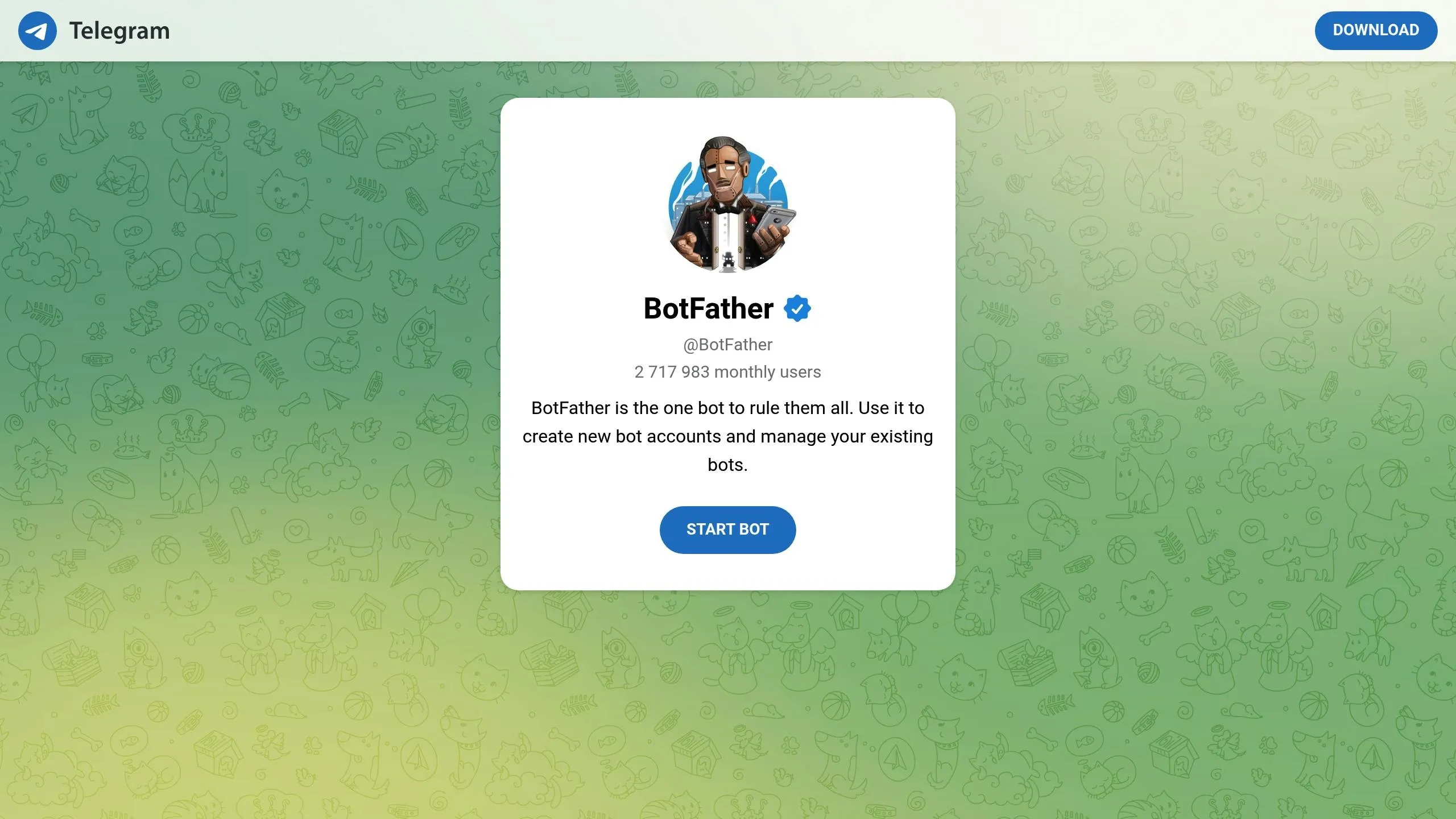
Open Telegram, search for @BotFather, or go directly to https://t.me/BotFather. Start by sending the /newbot command. You’ll need to:
- Choose a display name (spaces are fine).
- Pick a unique username ending with “bot.”
- Save the API token BotFather provides.
Once your bot is created, you can use Telegram commands to connect it to your Mini App.
Link Your Bot to the Mini App
To integrate your bot with your Mini App, use these methods:
- Set Up the Menu Button
Send/setmenubuttonto BotFather, choose your bot, provide your Mini App’s URL, and set a clear button title. - Enable Direct Access
Use the/myappscommand to register your Mini App, add your web link, and configure the launch parameters.
| Launch Method | Configuration Steps | Use Case |
|---|---|---|
| Menu Button | Use /setmenubutton |
Main access point |
| Direct Link | Configure via /myapps |
For sharing and promotion |
| Inline Mode | Enable in bot settings | Quick access in chats |
Security Tip: Keep your bot token safe to prevent unauthorized access. During development, you can use HTTP links and IPs, but make sure to switch to HTTPS links for production environments.
Step 5: Build Your Mini App
Create your Mini App by designing its interface, coding its functionality, and integrating it with Telegram’s APIs.
Develop the User Interface
Use TelegramUI components to ensure your app aligns with Telegram’s design guidelines [2]. Pay attention to these elements:
- Mobile-First Layout: Design a responsive interface that works well on all screen sizes. For instance, the Laurel Cafe Mini App [5] adapts seamlessly to both phones and tablets.
- Color Scheme: Match Telegram’s native color palettes for a cohesive user experience.
| Interface Element | Design Focus | Implementation |
|---|---|---|
| Navigation | Bottom menu design | TelegramUI components |
| Headers | Consistent Telegram style | Native font family |
| Buttons | Platform-specific look | iOS/Android design standards |
| Forms | Touch-friendly inputs | Proper mobile spacing |
Once your interface is set up, move on to coding the app’s functionality.
Program App Functions
With the layout complete, start coding the app’s features. This includes handling user interactions and processing data. Key tasks involve:
- Defining API endpoints, tokens, and managing CORS.
- Structuring data for smooth communication between the app and the backend.
Add Telegram API Features
Enhance your Mini App by integrating Telegram’s API capabilities. Focus on the following:
- User Authentication: Verify user identities securely through Telegram and manage login sessions effectively.
- Data Synchronization: Ensure real-time updates and cache critical data locally for better performance.
- Platform Integration: Add features like sharing content within Telegram and supporting inline mode for quick interactions.
These steps will help you build a fully functional Mini App that feels native to the Telegram environment.
Step 6: Test Your Mini App
Thoroughly test your Mini App on various devices and scenarios to make sure it performs well and is ready for launch.
Run Debug Tests
Use the following setups and actions to debug your Mini App effectively:
| Platform | Setup | Actions |
|---|---|---|
| Desktop | Beta Version + WebView Inspect | Enable experimental settings and use “Inspect” via right-click |
| macOS | Beta Version + Debug Menu | Tap the settings icon five times to activate Debug Mini Apps |
| Android | USB Debugging + Chrome | Enable WebView Debug and access it through chrome://inspect/#devices |
| iOS | Safari Web Inspector | Connect the device to a Mac and use Safari’s Develop menu |
- Use Eruda for debugging when native tools are not available.
Check Different Devices
Test your Mini App on a variety of devices to ensure:
- Consistent themes in both Day and Night modes
- Smooth animations
- Proper interface scaling
For Android devices, adjust animations on lower-end models to maintain performance.
Test User Scenarios
Test your Mini App across the following areas to ensure functionality:
-
Launch Points: Confirm it works when accessed via profile buttons, keyboard buttons, inline buttons, bot menus, direct links, and the attachment menu.
-
Core Features and Technical Integration: Verify essential features like:
- User authentication
- Data synchronization
- Input interfaces
- Message sending
- Multi-user interactions
- Location services
- Device motion
- Cloud storage
- Media sharing
- Payment processing
Make sure every feature works seamlessly across different devices and usage scenarios.
Step 7: Launch Your Mini App
Once you’ve finished testing, it’s time to launch your Mini App with secure hosting and strong security protocols.
Set Up Secure Hosting
Reliable hosting is key to ensuring your app runs smoothly and securely. If you’re using GitHub Pages, follow these steps:
- Create a repository and push your files to it.
- Go to the repository’s Settings, enable Pages, and deploy from a branch (select your main branch and root directory).
- Ensure HTTPS is enabled, as Telegram requires secure connections for production environments.
Your Mini App will then be accessible at https://{github-username}.github.io/{repository-name}/{location}.
Add Security Features
Protecting user data and interactions is critical. Below are the key security measures you need to implement:
| Security Feature | How to Implement | Validation Process |
|---|---|---|
| Data Validation | Use Telegram.WebApp.initData |
Verify on your bot’s backend |
| Signature Check | Apply HMAC-SHA-256 | Compare with the data-check string |
| Timestamp Validation | Check the auth_date field |
Block outdated data |
| Third-party Security | Use Ed25519 signature | Validate with Telegram’s public key |
For third-party integrations, include Telegram.WebApp.initData and your bot_id for independent verification. Never expose your bot token.
Complete App Verification
To verify your app, use the following steps:
- Use BotFather’s
/newappcommand to set up your web app URL. - Configure the bot menu using
/setmenubutton. - Update your application link via
/myapps.
A great example of this process in action is Softstack’s work for Durger King in April 2024. Their Mini App integration enabled smooth user interactions directly within Telegram, showcasing how businesses can benefit from properly configured and secure Mini Apps [6].
With your app now live and verified, you’re ready to shift your focus to growing your user base in the next step.
Step 8: Grow Your Mini App
With your app live and verified, the next step is all about getting it in front of more users.
Share Your Mini App
Promoting your app effectively is essential to attract your target audience. Here are a few ways to get the word out:
| Channel | Best Practices | Impact |
|---|---|---|
| Telegram Channels | Share the app link with key features | Brings direct users |
| Community Groups | Post tutorials and real-life use cases | Encourages organic growth |
| App Directories | Add your app to the FindMini.app catalog | Boosts visibility |
| Promo Block | Opt for featured placement ($200/week) | Offers premium exposure |
For broader reach, consider professional marketing services. Targeted campaigns, for instance, have shown great results in driving engagement.
Get User Comments
Once your app is live, gathering user feedback is crucial for ongoing improvements. Here’s how you can collect input:
| Feedback Method | Purpose | Implementation |
|---|---|---|
| In-App Feedback | Gather direct user input | Add a button linked to a support chat |
| User Surveys | Learn about feature needs | Conduct monthly surveys |
| Analytics | Understand usage trends | Use FindMini.app analytics tools |
Focus on addressing critical feedback first, and maintain a public changelog to show users their input matters. Fixing reported issues before adding new features ensures a smoother experience for everyone.
Track with FindMini.app
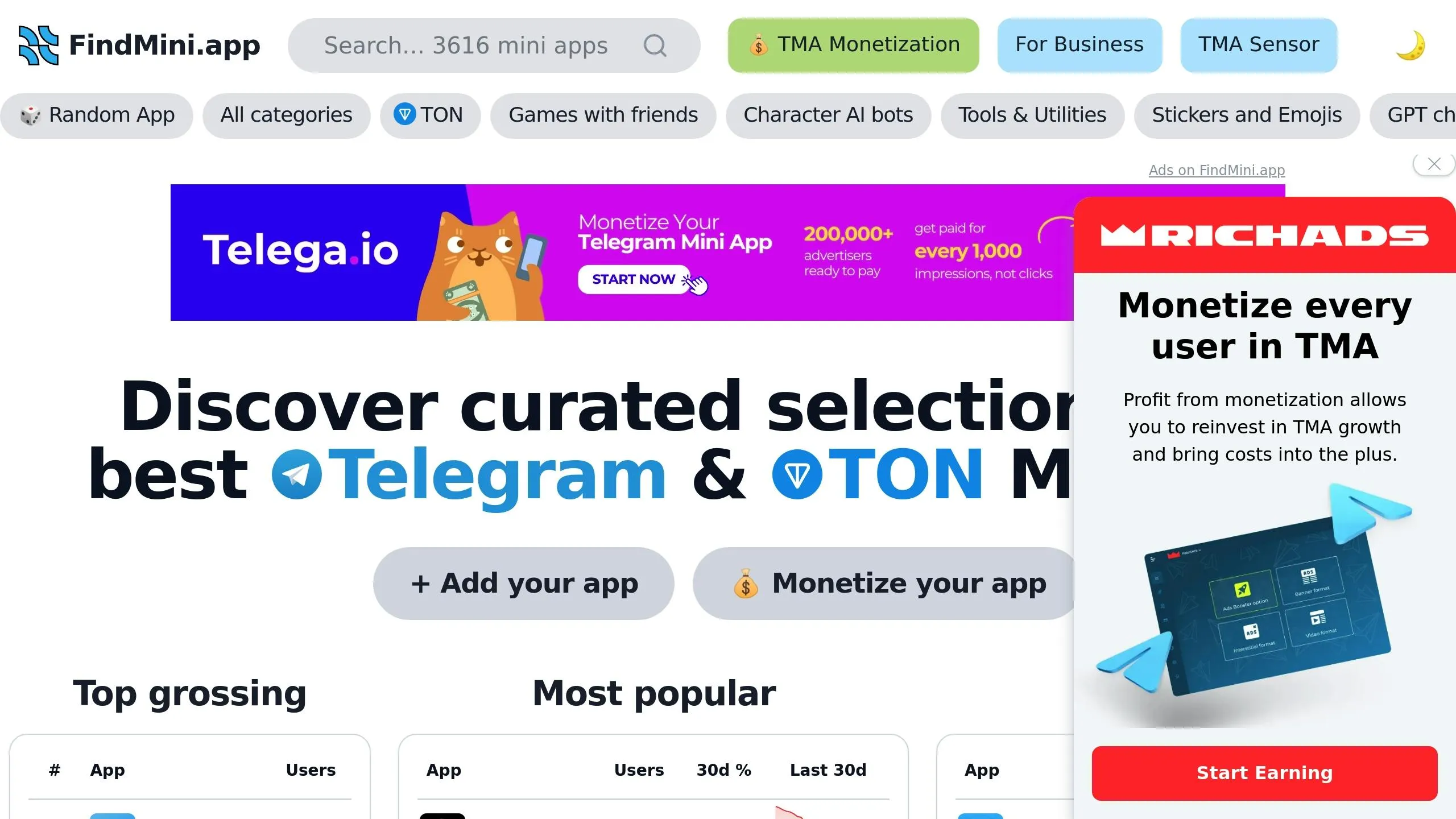
FindMini.app’s analytics dashboard is a powerful tool for tracking how your app is performing. Keep an eye on these metrics:
| Metric | What to Monitor | Why It Matters |
|---|---|---|
| Users | Total user count | Reflects overall growth |
| Followers | Engaged audience size | Shows community involvement |
| Daily Growth | Percentage changes (1d) | Tracks immediate performance shifts |
| Weekly Trends | Percentage changes (7d) | Highlights short-term patterns |
| Monthly Progress | Percentage changes (30d) | Reveals long-term success |
These insights will help you make informed decisions about updates and marketing. Regularly reviewing data ensures you can spot opportunities and address issues before they impact user satisfaction. Use this information to fine-tune your strategies and keep improving.
Wrapping It Up
This guide has walked you through the entire process, from planning to achieving growth. Launching a Mini App successfully requires careful execution of all eight steps, as each phase plays a crucial role in ensuring your app performs well.
Once your app is live, keep the momentum going by consistently monitoring and improving its performance. Leverage analytics to track essential metrics like daily user acquisition and long-term engagement trends. As covered in Step 8, promoting your app and gathering user feedback are key to maintaining success over time.
Here are a few critical factors for success:
- Track performance metrics to spot trends and issues early
- Listen to user feedback to enhance satisfaction and retention
- Analyze competitors to inform feature updates and improvements
- Promote strategically to boost your app’s visibility
The Telegram Mini App ecosystem is growing fast, with over 3,900 apps now listed in the FindMini.app directory. Stay user-focused and use data to guide your decisions. With consistent effort and smart optimizations, your Mini App has the potential to thrive.